
FREE WINDOWS UTILITY · VERSION 1.1.2
Aerox 5 Wireless & HyperX Cloud III S Wireless Battery Monitor
Your mouse. Your headset. One quiet corner of your desktop.
Keep an eye on your wireless gear without opening another device app. Battery Status is a compact desktop battery monitor built around the SteelSeries Aerox 5 Wireless and HyperX Cloud III S Wireless.
Only what you use.
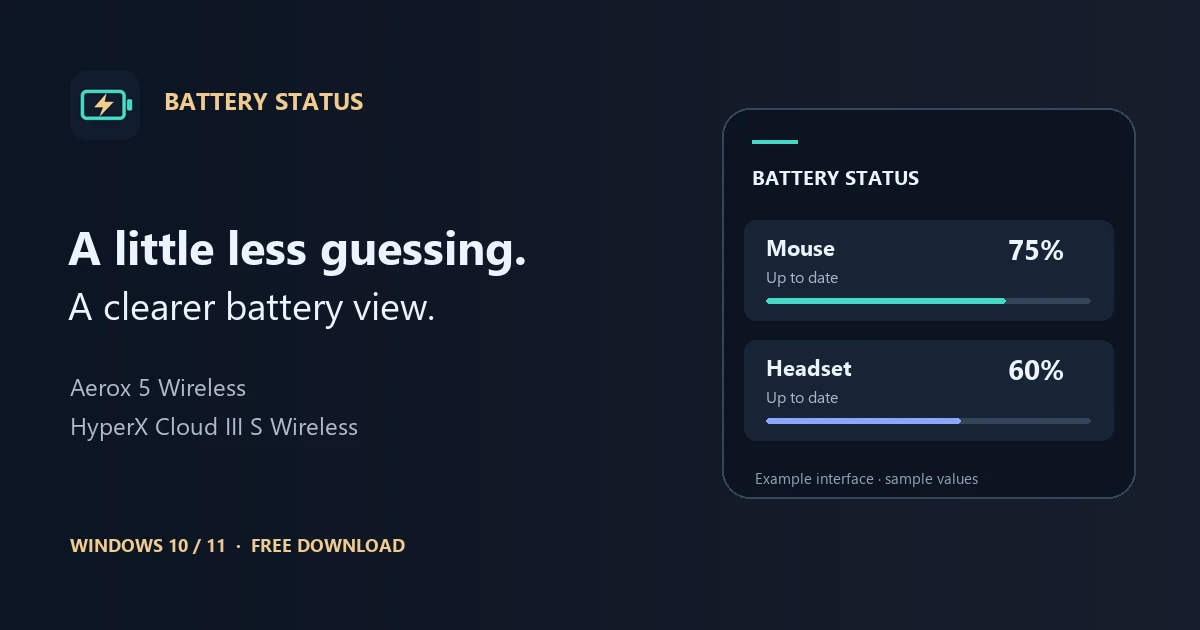
Show your mouse, your headset, or both. Hide either device from the right-click menu; the card adjusts to fit.
Quietly in view.
Move the card and adjust its opacity. Always on top is off by default, and remains an option if you want it.
Your setup, connected.
Use it as a standalone desktop card, or connect its local JSON feed to Macro Deck. No Python installation needed.
Built for these devices.
SteelSeries Aerox 5 Wireless mouse and HyperX Cloud III S Wireless headset, through their supported USB wireless interfaces. You can use either device on its own.
This is a focused community utility, not a universal battery reader. Bluetooth-only connections and other models are not promised to work. Hardware and firmware differences can affect readings. So far, testing has been limited to the developer’s Windows setup.
Technical USB compatibility
The current reader recognises SteelSeries VID 1038 / PID 1852, 1854, 185C, 1860 (interface 3) and HyperX VID 03F0 / PID 06BE, 02CC (usage page 01C0). A matching identifier does not guarantee every firmware variant works.
Know when a reading is old.
If a device sleeps or stops responding, the card retains its last known battery level and marks it with a last-read time. A historical value is not a live measurement.
Install. Pick a corner. Carry on.
- Download the ZIP, extract it, and run the Windows installer inside. Approve the administrator request.
- Keep the default Program Files location, or choose your own. Desktop shortcut and sign-in launch are offered during setup.
- Connect your supported USB wireless receiver, turn on the device, and open Battery Status.
- Right-click the card to choose which devices to show, change opacity, or refresh.
The app follows the Windows display language: Turkish on Turkish systems, English otherwise. Settings are kept in your user profile, so everyday use does not need administrator rights.
Local by design.
The desktop app has no account, telemetry, or cloud service. Battery data stays on your computer. Its optional Macro Deck feed is available only through the loopback address 127.0.0.1.
This website uses the site’s existing Google Analytics and Microsoft Clarity integrations. Website measurement is separate from the desktop app.
Read the privacy & local-data details →A few useful answers.
Do I need both devices?
No. Use either device on its own and hide the other from the right-click menu.
Do I need Macro Deck or Python?
No. The desktop card runs on its own, and its runtime is included in the installer. Macro Deck integration is optional.
Why does the headset show an old value?
The headset may be off, asleep, disconnected, or not responding through the expected USB interface. Turn it on, check the receiver, and select Refresh now. A last-read label means the value is historical.
How do I remove it?
Use Windows Settings → Apps → Pil Durumu / Battery Status. Uninstall closes the card and its background service. User-created settings and history may remain; the guide explains where they live.